Kling Image 4.0AI Image Generator for Detailed Stills
Generate detailed stills from text at up to 8K native resolution. Use up to 10 reference images in a request when you want to guide the subject, setting, or style.
A tide pool in moonlight
Starting material: text prompt
Make an oblique close photograph of a glacial-blue tide pool tucked into dark volcanic rock at dusk. One strip of reflected white sky lights the jagged rim. Tiny bubbles and fine ripples separate the cold water from the rough basalt. Keep the main pool near the center, include the edges of the rock, and let the far side fall softly into charcoal shadow.
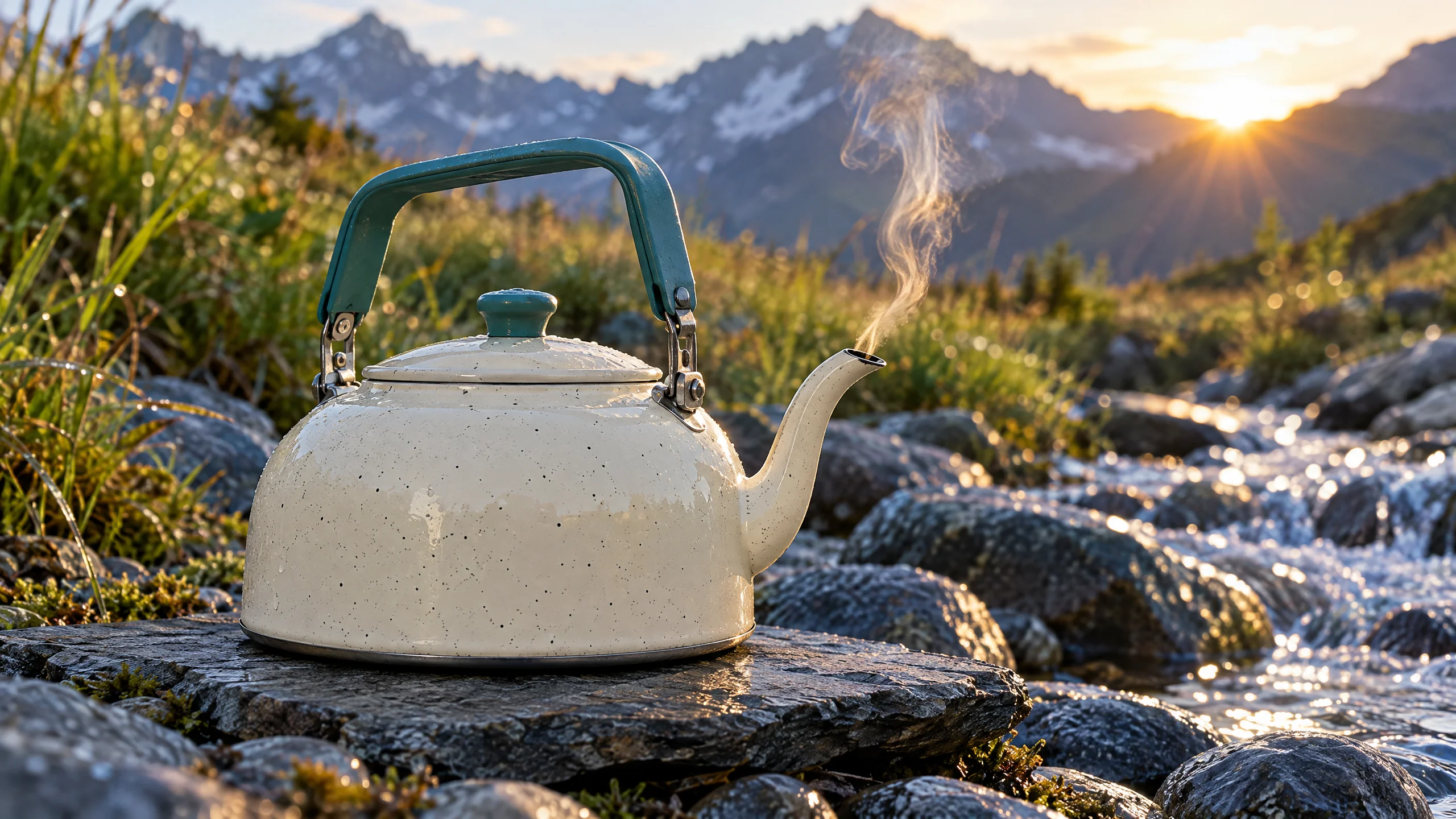
A kettle at camp
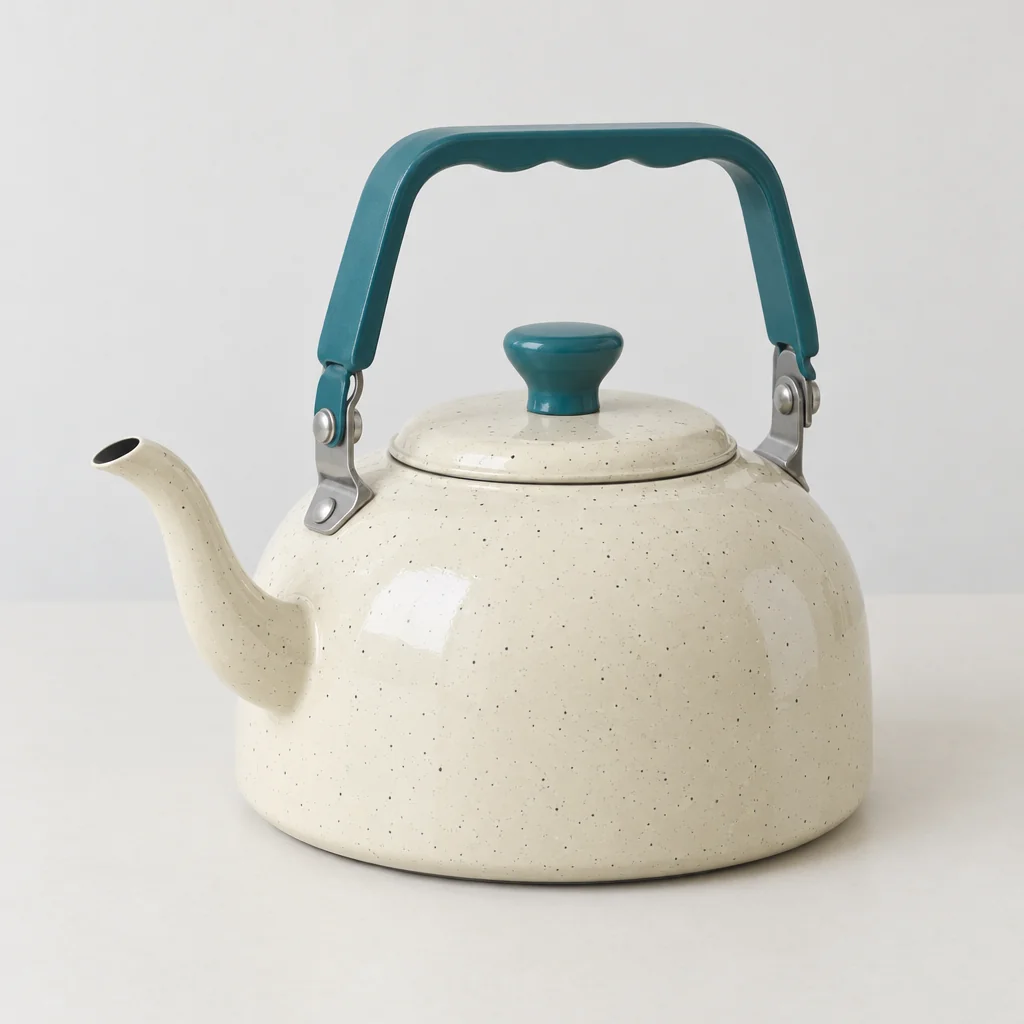
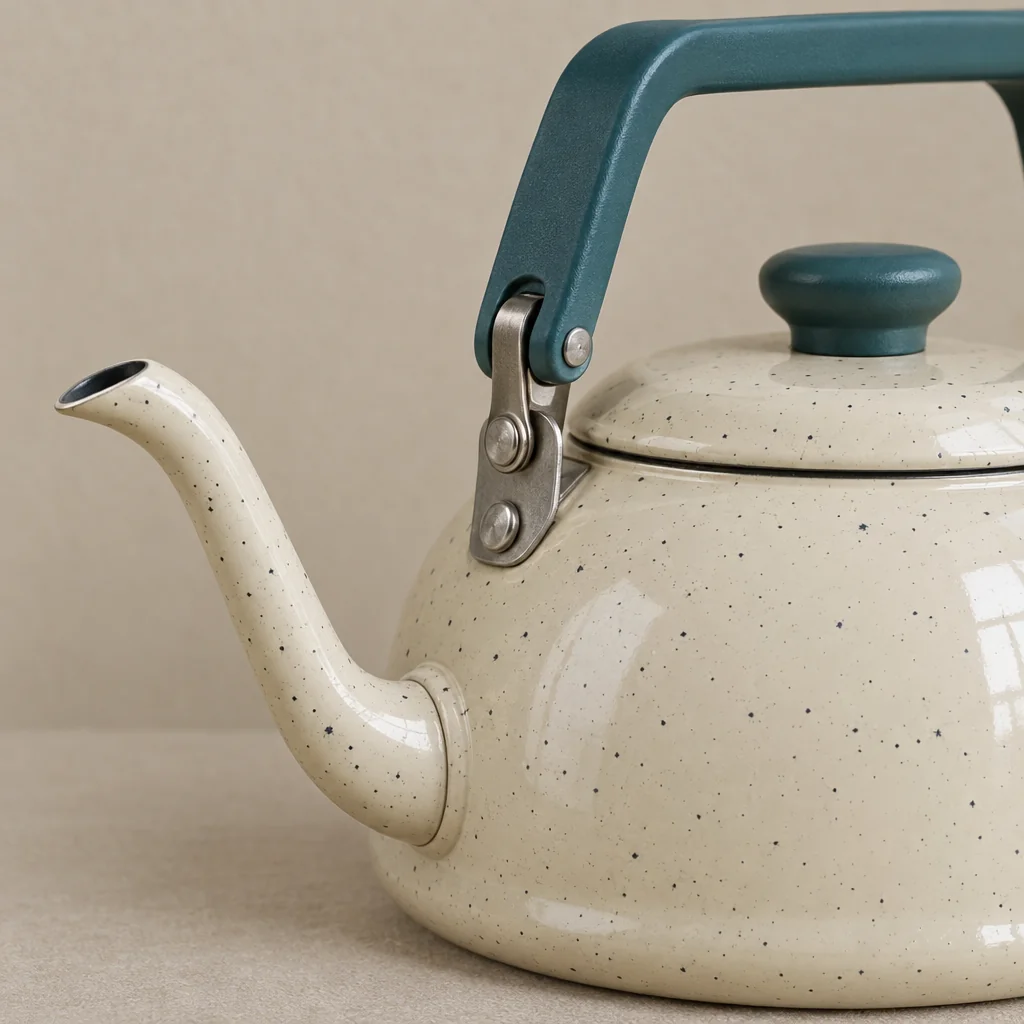
Kettle shapeEnamel and spout
Reference images and prompt
A cream enameled camping kettle, shaped like a low rounded dome, with a teal folding handle, a short gooseneck spout, and tiny charcoal flecks in the enamel. Set the kettle on a thin slate slab beside an alpine stream just after sunrise. Keep the rounded enamel profile and teal handle visible. A thin curl of steam picks up warm light. Frame the whole kettle from a low three-quarter angle with wet blue stones and blurred grass behind it.
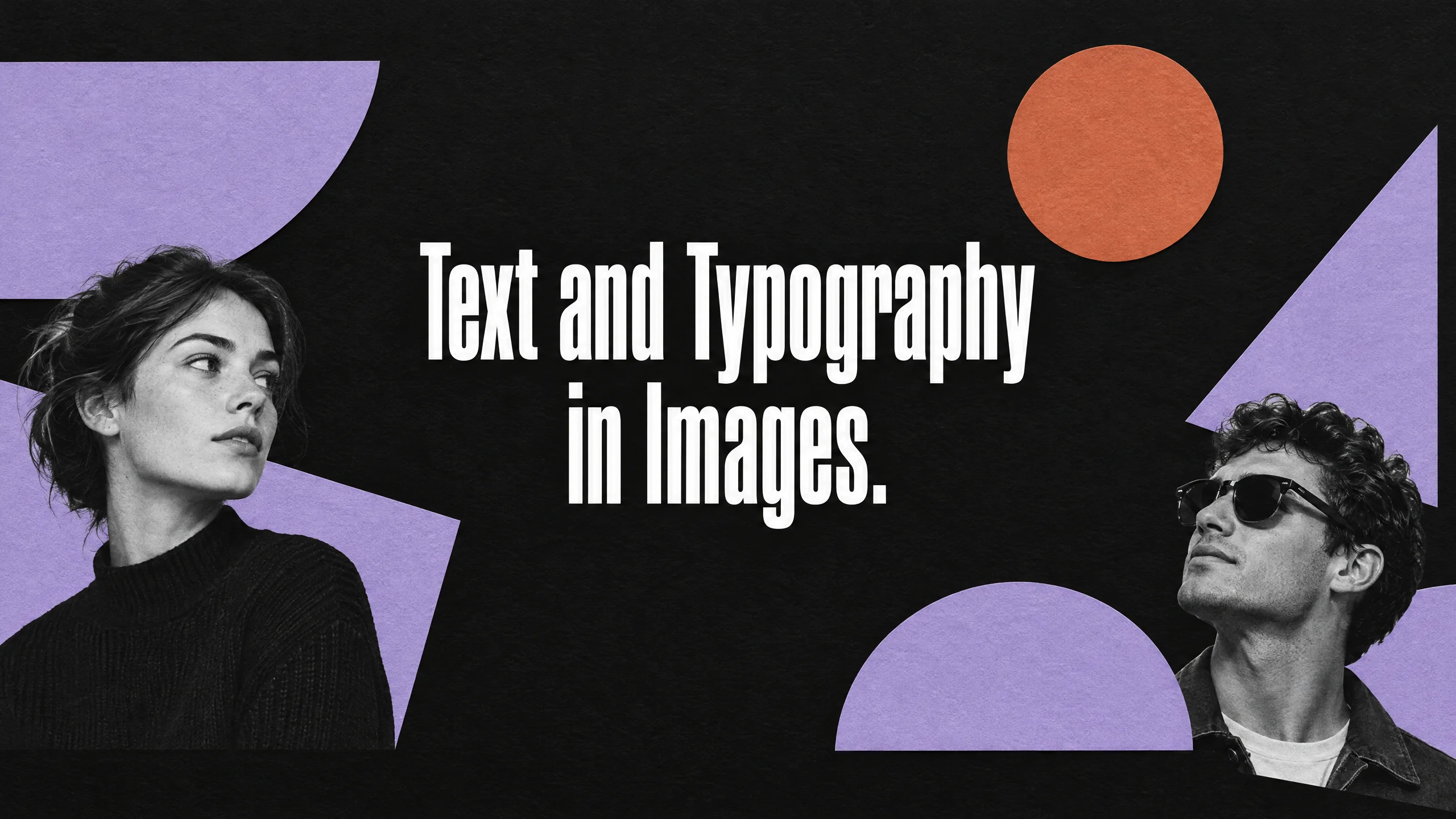
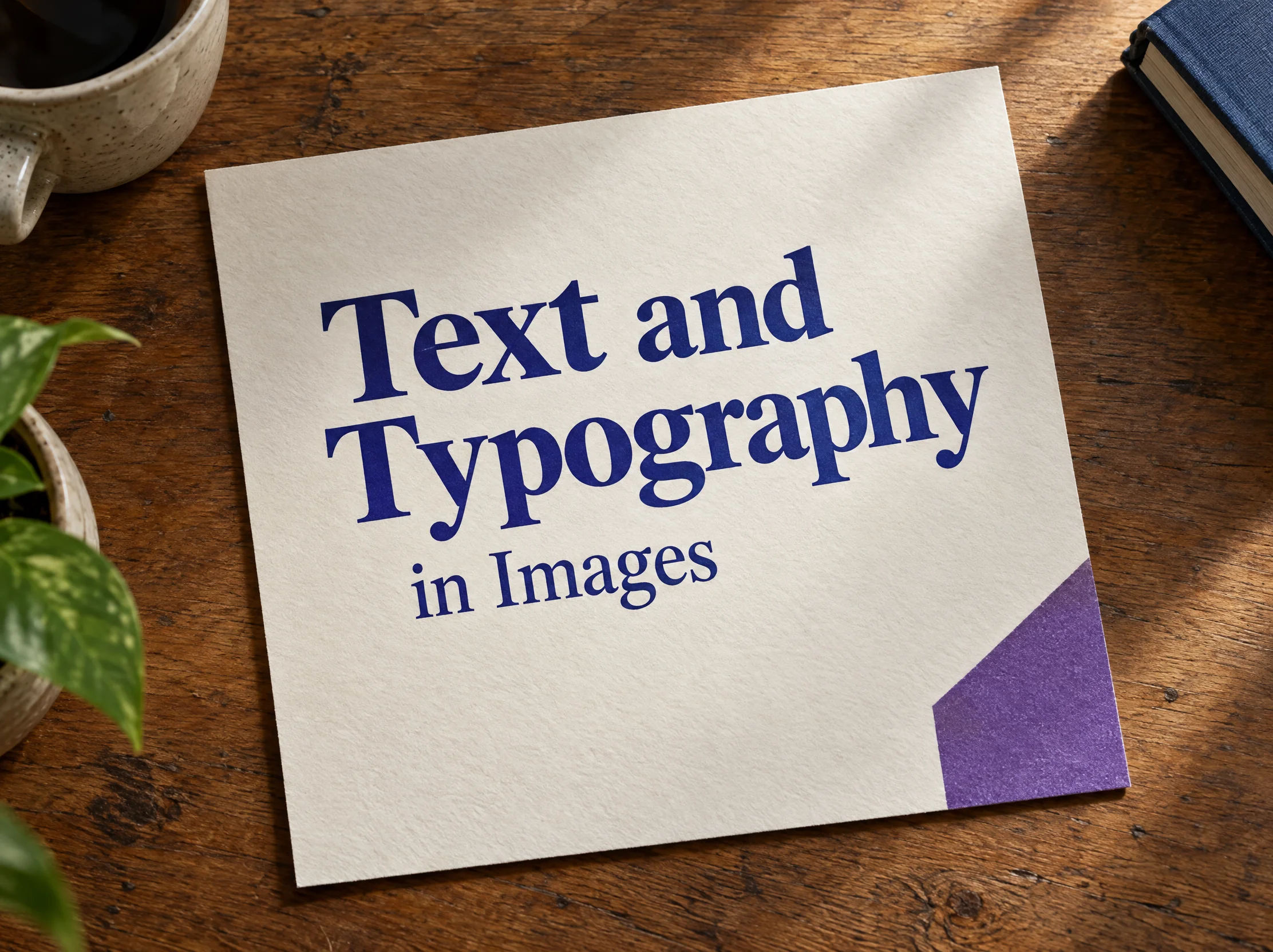
An image with lettering
Starting material: text prompt
Build a wide editorial type study around the exact wording “Text and Typography in Images.” Set the words in crisp tall white condensed type, organized into a confident two-line block. Surround the type with strong lavender cut-paper shapes and a terracotta circle on matte black paper. Keep the type block entirely in frame and leave it breathing room.
What Is Kling Image 4.0?
Kling Image 4.0 is Kling AI’s image model for creating still images and visual designs.
This version focuses on more natural lighting and material textures, native high-resolution rendering, and consistency across related pictures. Native rendering produces the image at the selected resolution, which gives small details room to appear in the original still. You can make a single image for a particular layout or a set of visuals that share a subject and style. The model also renders text as part of the composition, so a poster or a product layout can include its own lettering.
What You Can Make with Kling Image 4.0
Combine visual references, make a related set, or put lettering and artwork in the same image.
Multi-Reference Image Generation
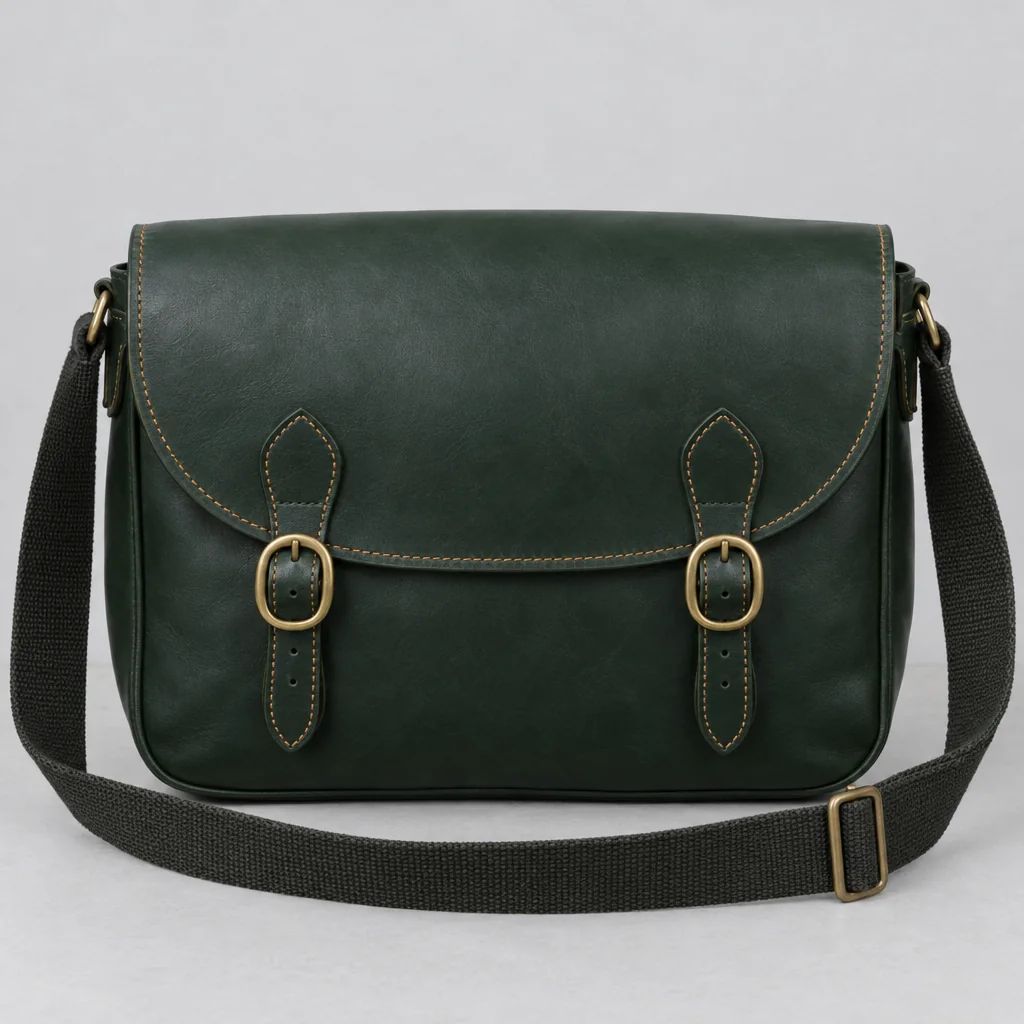
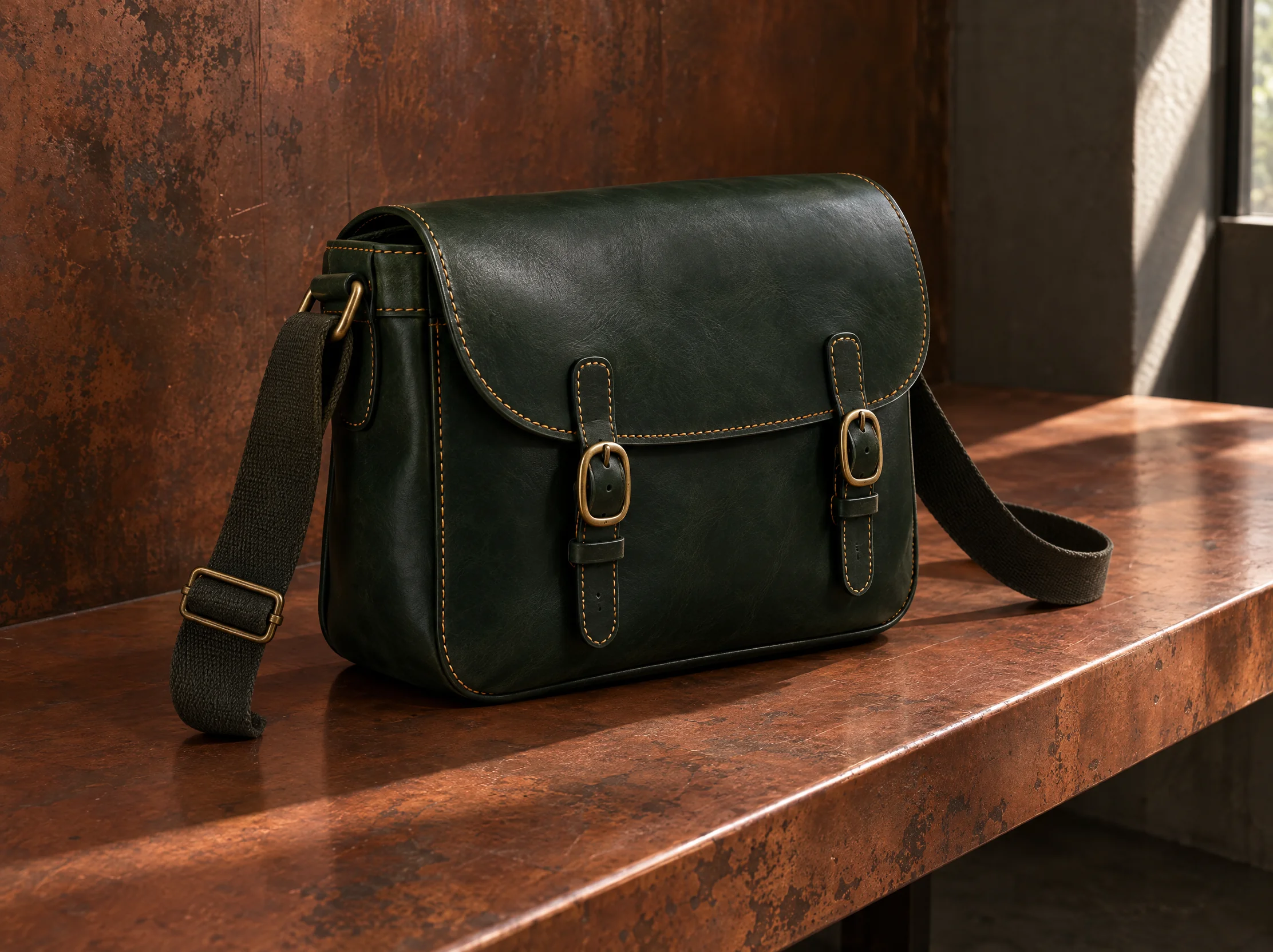
Give up to 10 reference images different jobs in the same request. A product photo can show the object, a second angle can clarify how it is built, and a scene reference can suggest lighting or materials. Explain what to take from each image in your prompt so a new composition can use those details together.
A campaign may need a cover, a detail shot, and a second scene that feels like part of the same project. Series Mode creates up to 10 related images from one prompt. You can describe the subject and visual style they share and give each image its own purpose, such as an overview for the lead and a tighter view for the details.
Render titles, labels, and longer sections of copy as part of the picture. Kling Image 4.0 supports up to 2,000 characters of rendered text in one image, with support for English, Chinese, Japanese, Korean, Spanish, and Portuguese. Specify a type style in the prompt or supply a visual reference for the lettering. A headline and a date can then be composed with the artwork from the start.
Compose an extended image for a product detail page or a website design concept. A long layout gives the lead photo, supporting details, and short blocks of text room to follow one another. It works well when you want to see the whole design as one still, including how space and emphasis change as the eye moves down the page.
Start with a description or references, set the frame, and save a finished still. The Kling Image 4.0 guide explains the settings and common fixes.
Step 1: Choose Your Starting Material
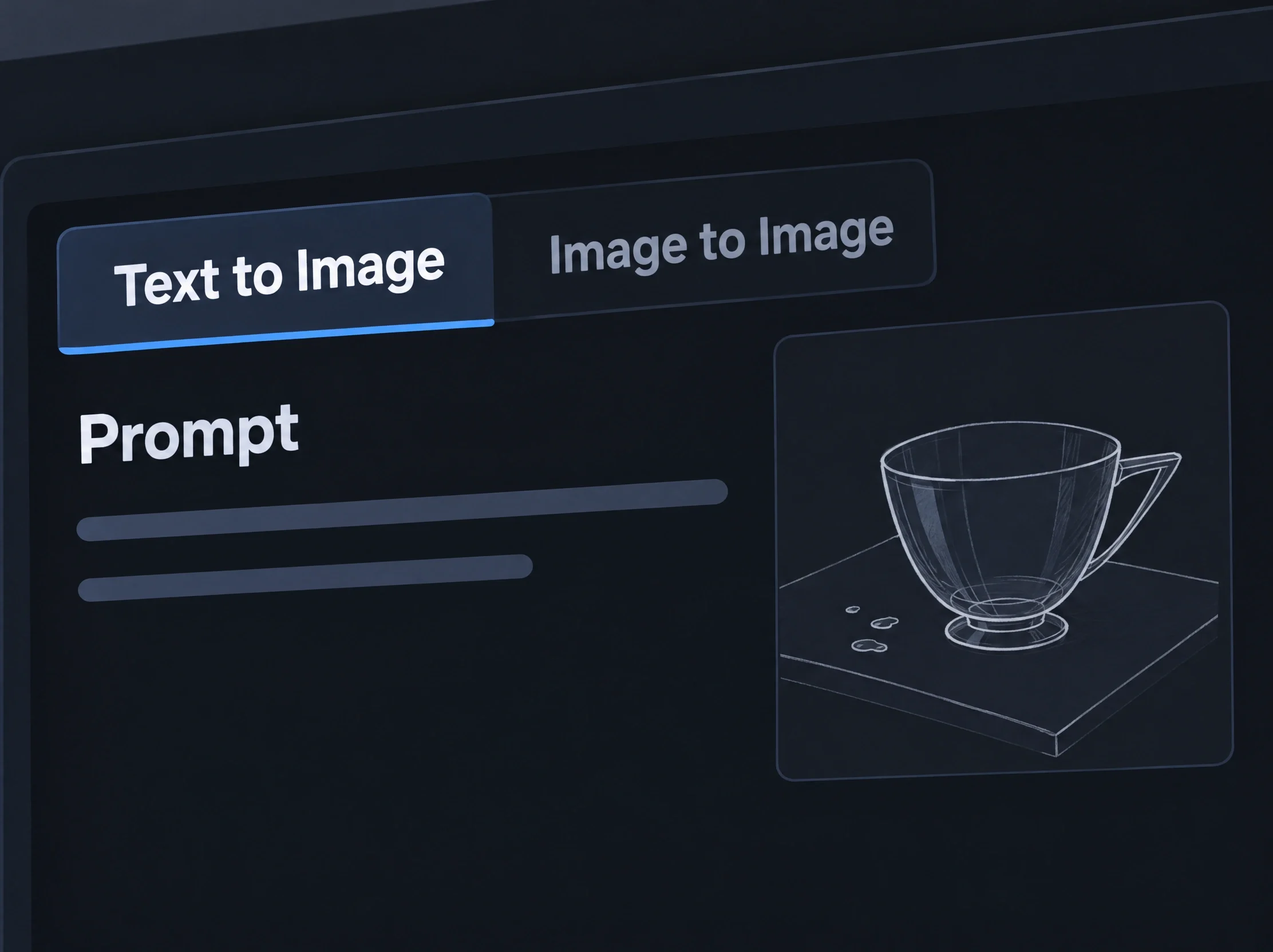
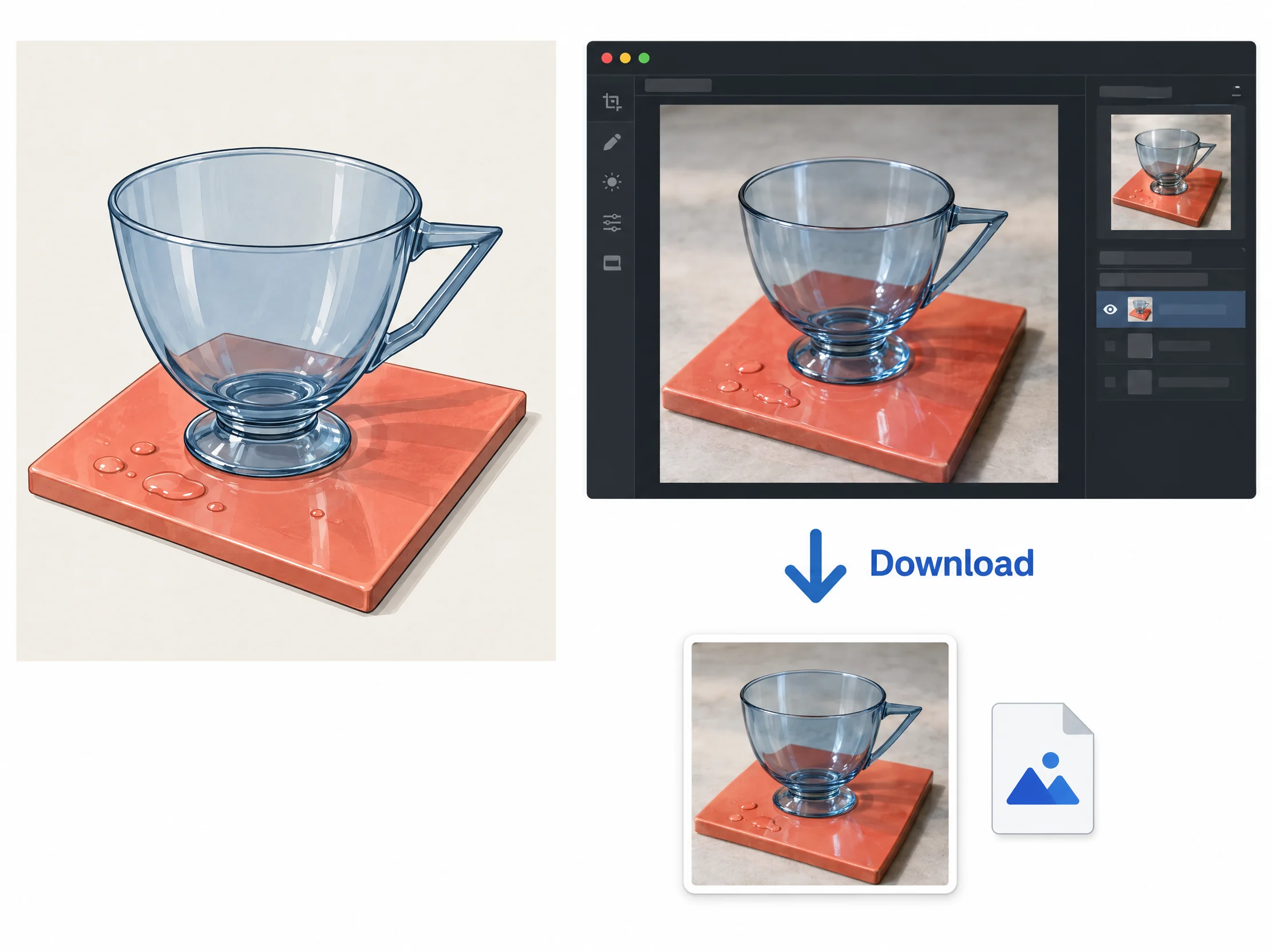
Choose Text to Image or start with references in Image to Image. Describe what you want in the new picture.
Step 2: Set the Frame and Generate
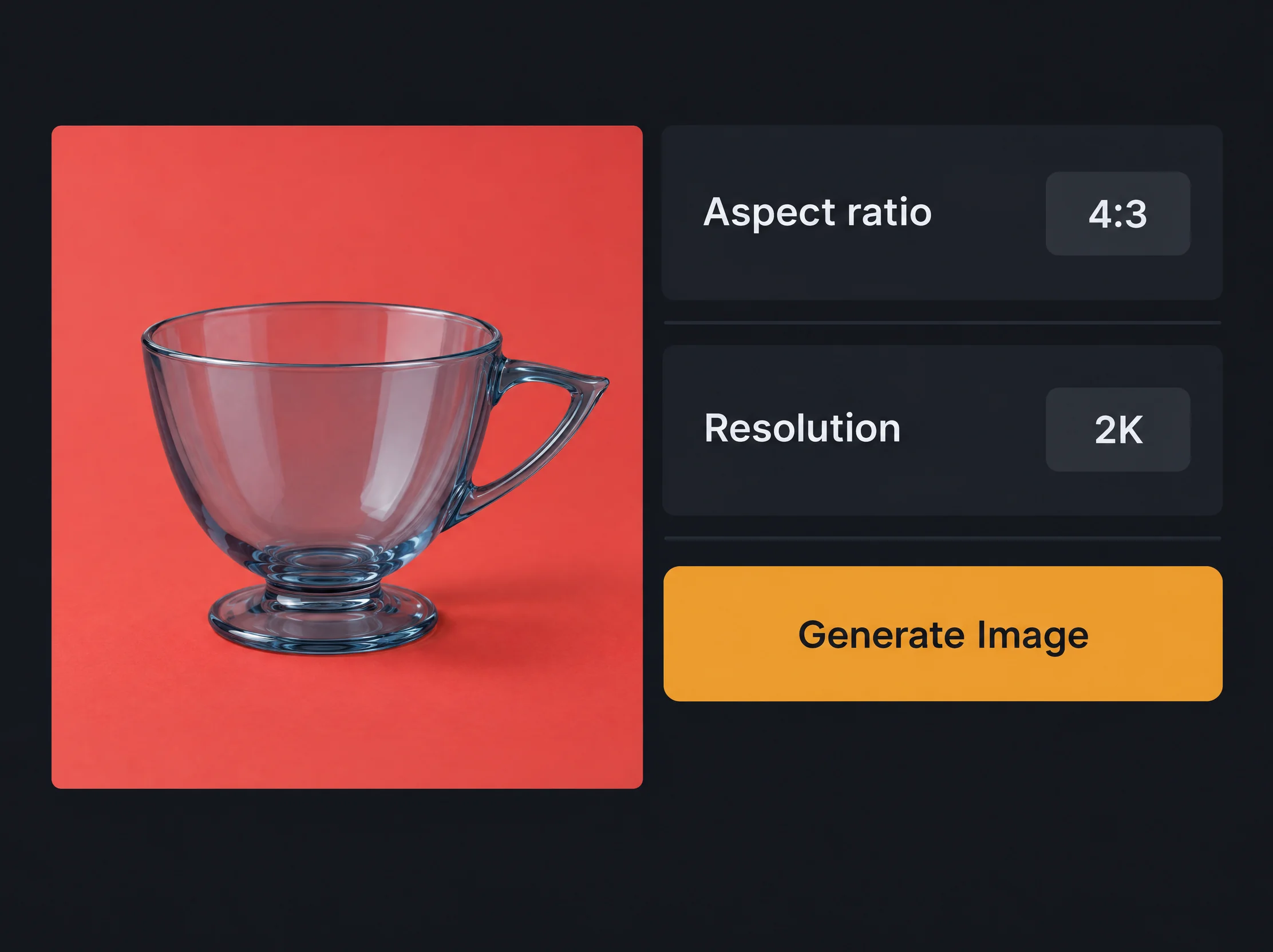
Choose Single Image or Series Mode. Set the aspect ratio and an available resolution. Select Generate Image and review the result.
Step 3: Download and Save Your Image
Open the finished image you want to keep, then download it to your project folder.
Where to Use Kling Image 4.0 Images
Create images for listings and storyboards, design posters and product detail pages, build campaign sets, or explore an interior update.
Product Hero Images
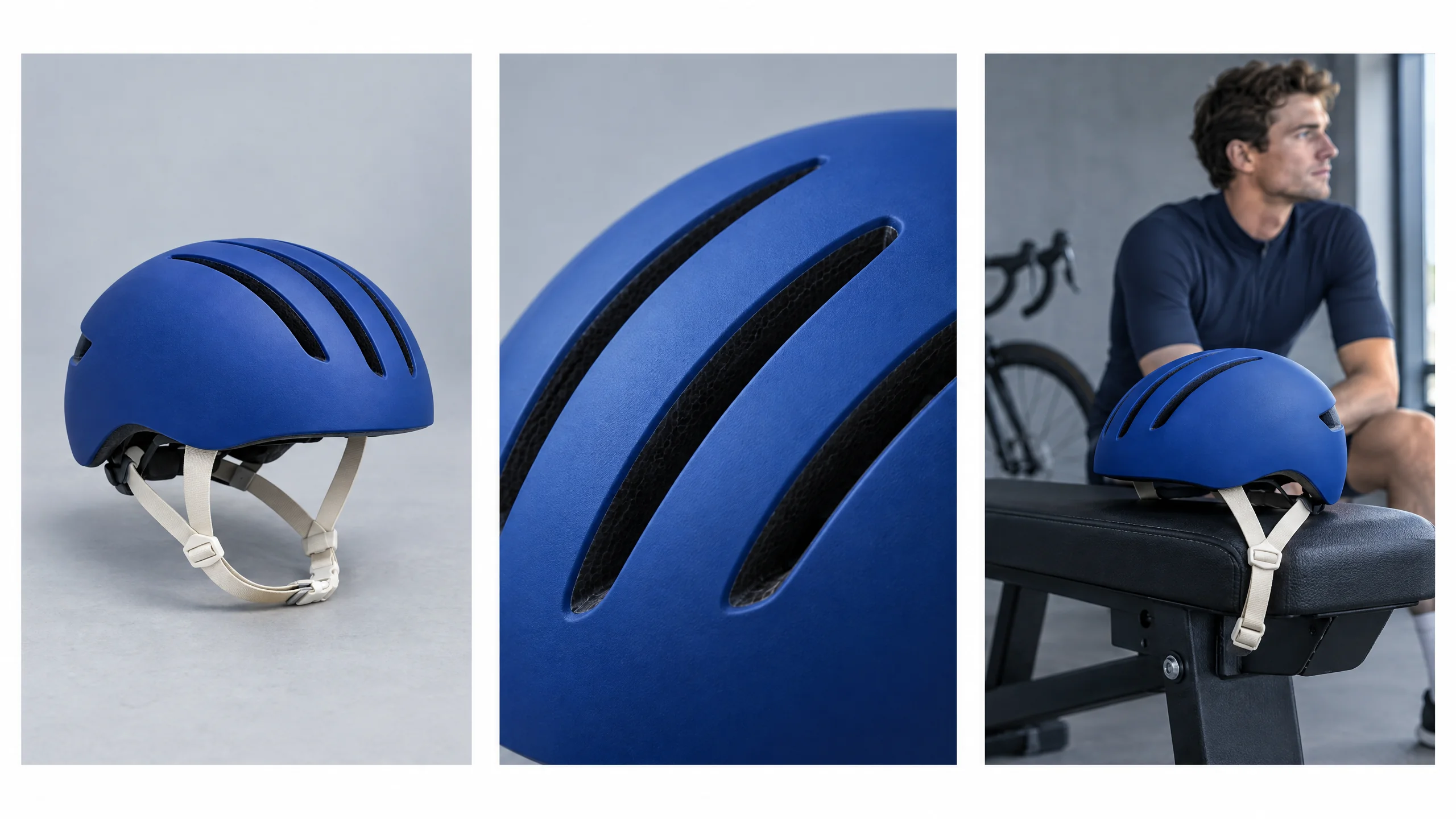
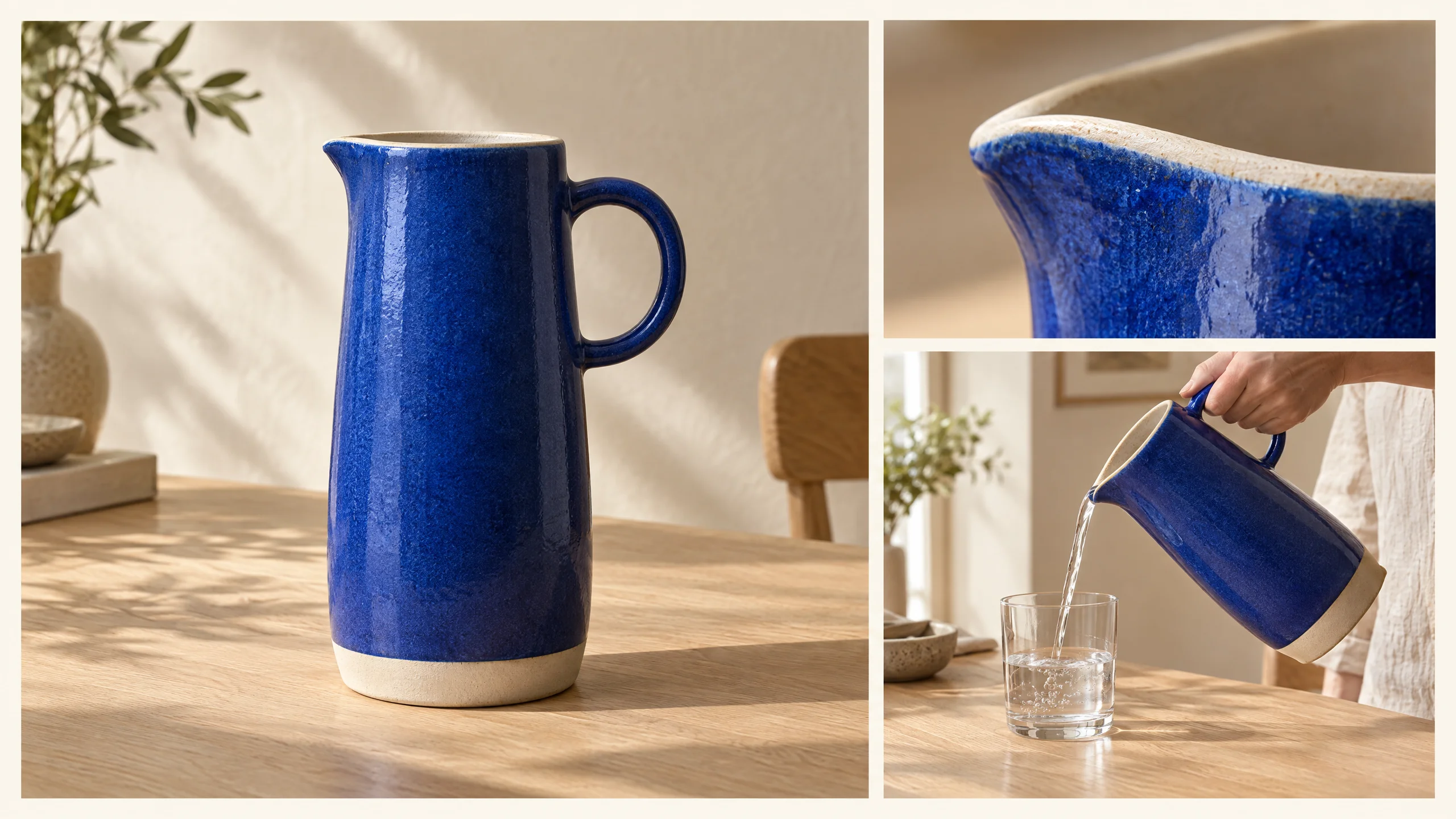
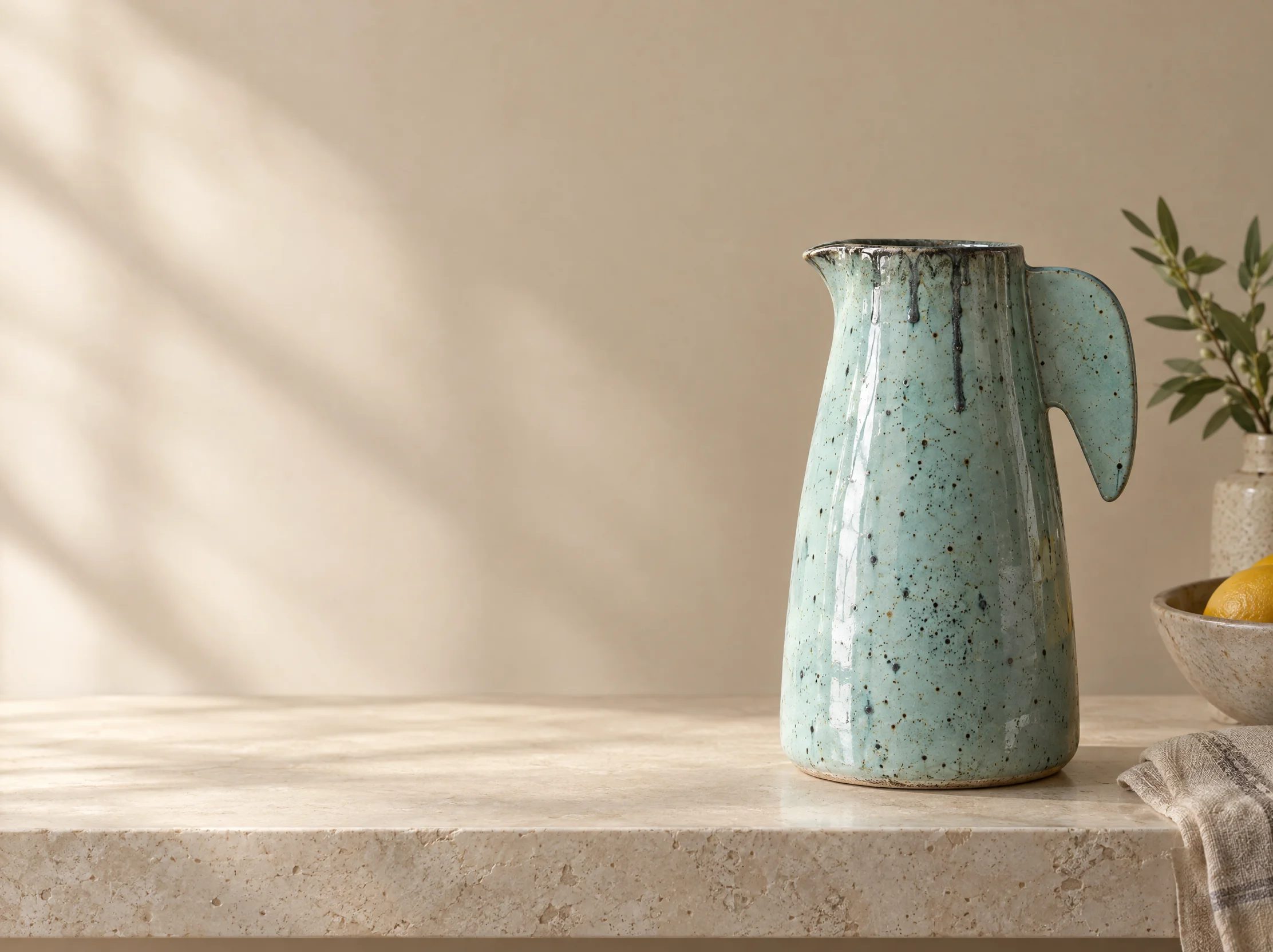
Start with clear product photographs from angles that show the silhouette and any recognizable surface pattern. Place the product in a setting that fits the campaign, such as a kitchen shelf for a ceramic pitcher. Ask for open space beside the subject when the listing needs room for a separate headline.
Storyboard Stills
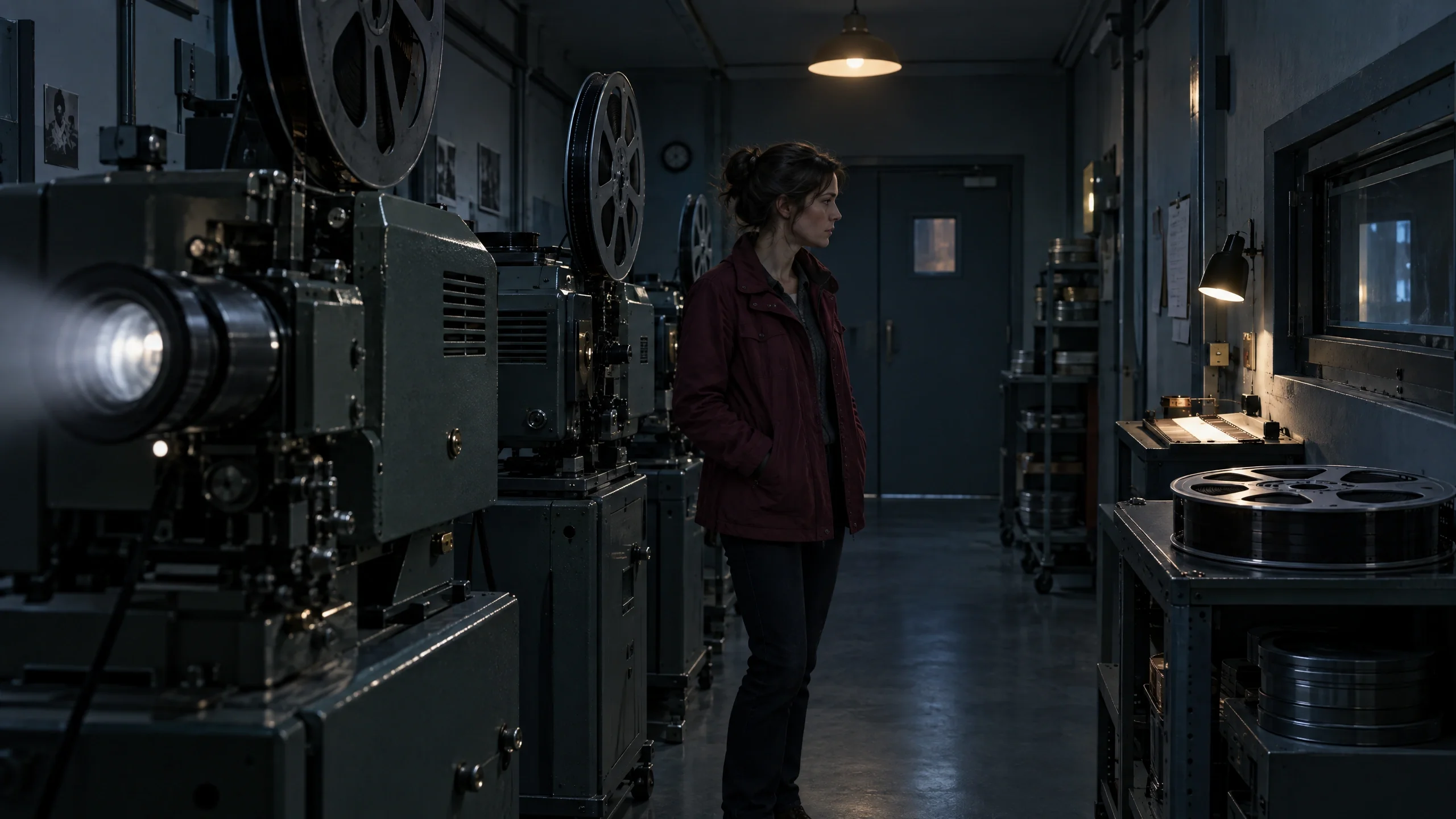
Use a description of the location and a visual reference for the character to make stills for a storyboard. Give each frame a purpose, such as showing the scale of a room or the placement of a prop. A shared color palette and wardrobe help the frames read as one project in a pitch deck.
Event Posters
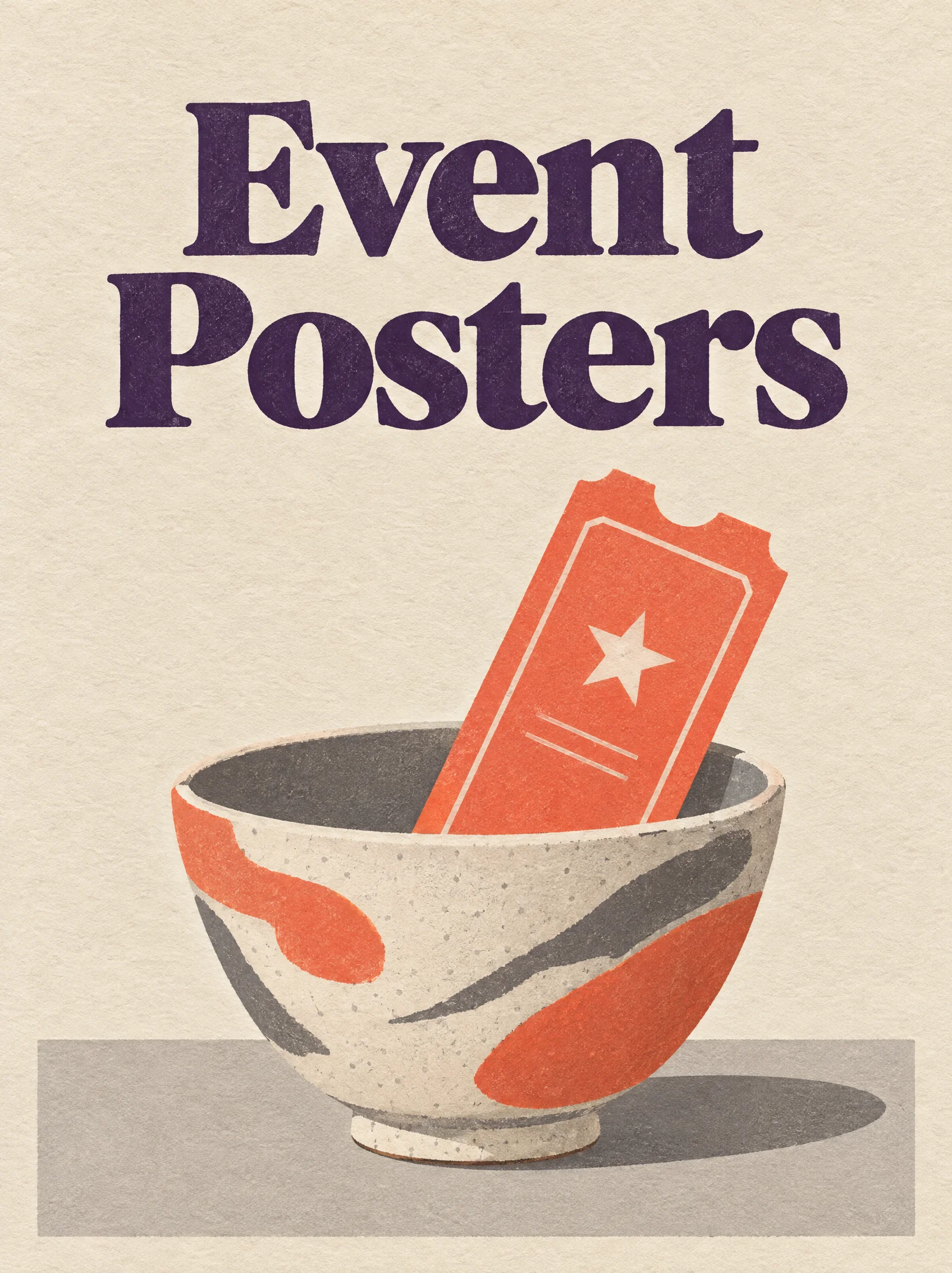
Bring the exact event name and date with a description of the print or screen layout. Ask for a prominent title and a quieter date line with room around the artwork. For a poster seen from across a room, give the title a larger role and keep supporting details in a separate block.
Product Detail Pages
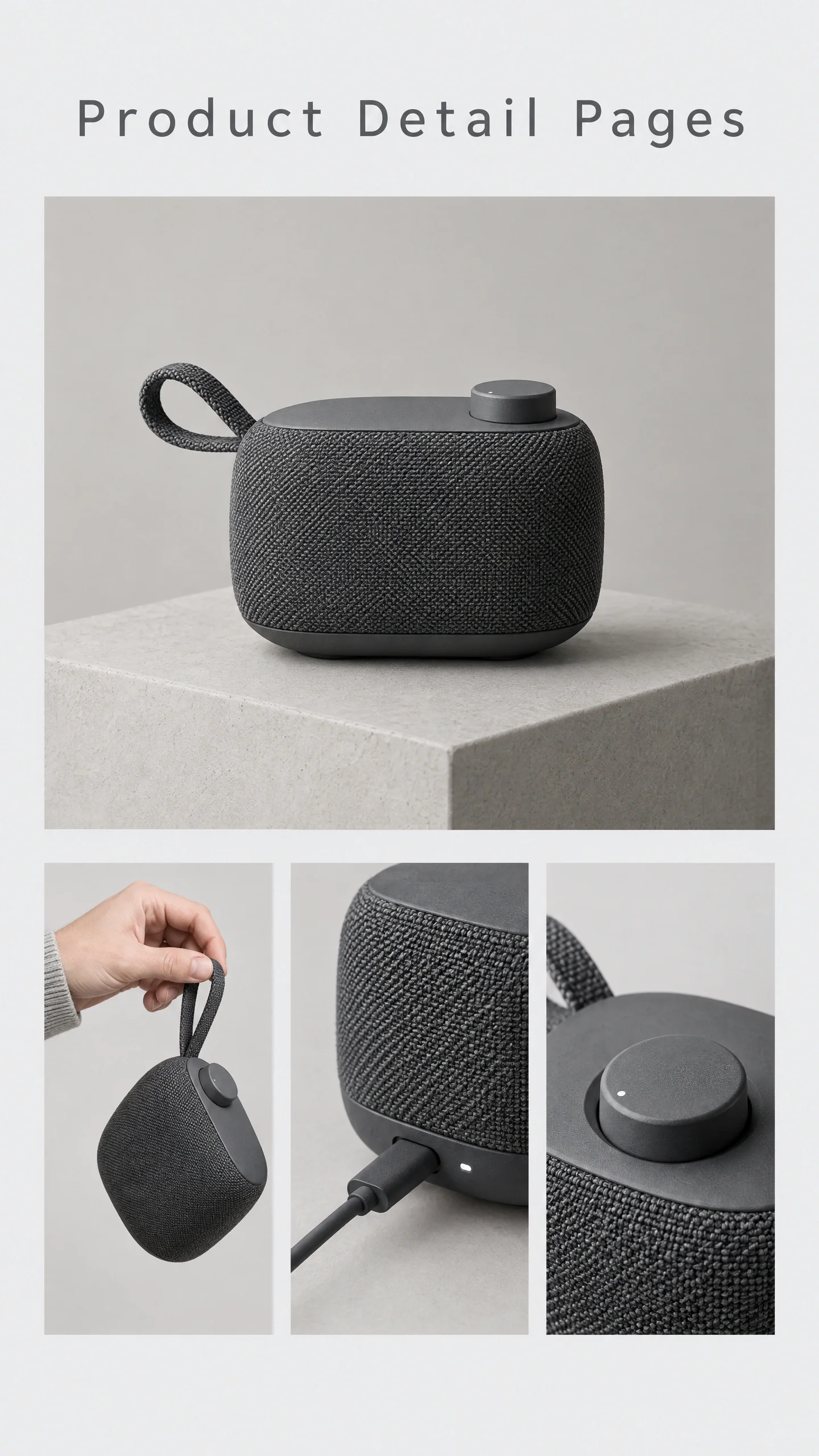
List the questions shoppers should be able to answer, such as how a travel speaker is carried, charged, and controlled. Give each question a separate panel in one tall image, and put the information that matters most near the top. Use the layout as a draft for the product page.
Social Campaign Sets
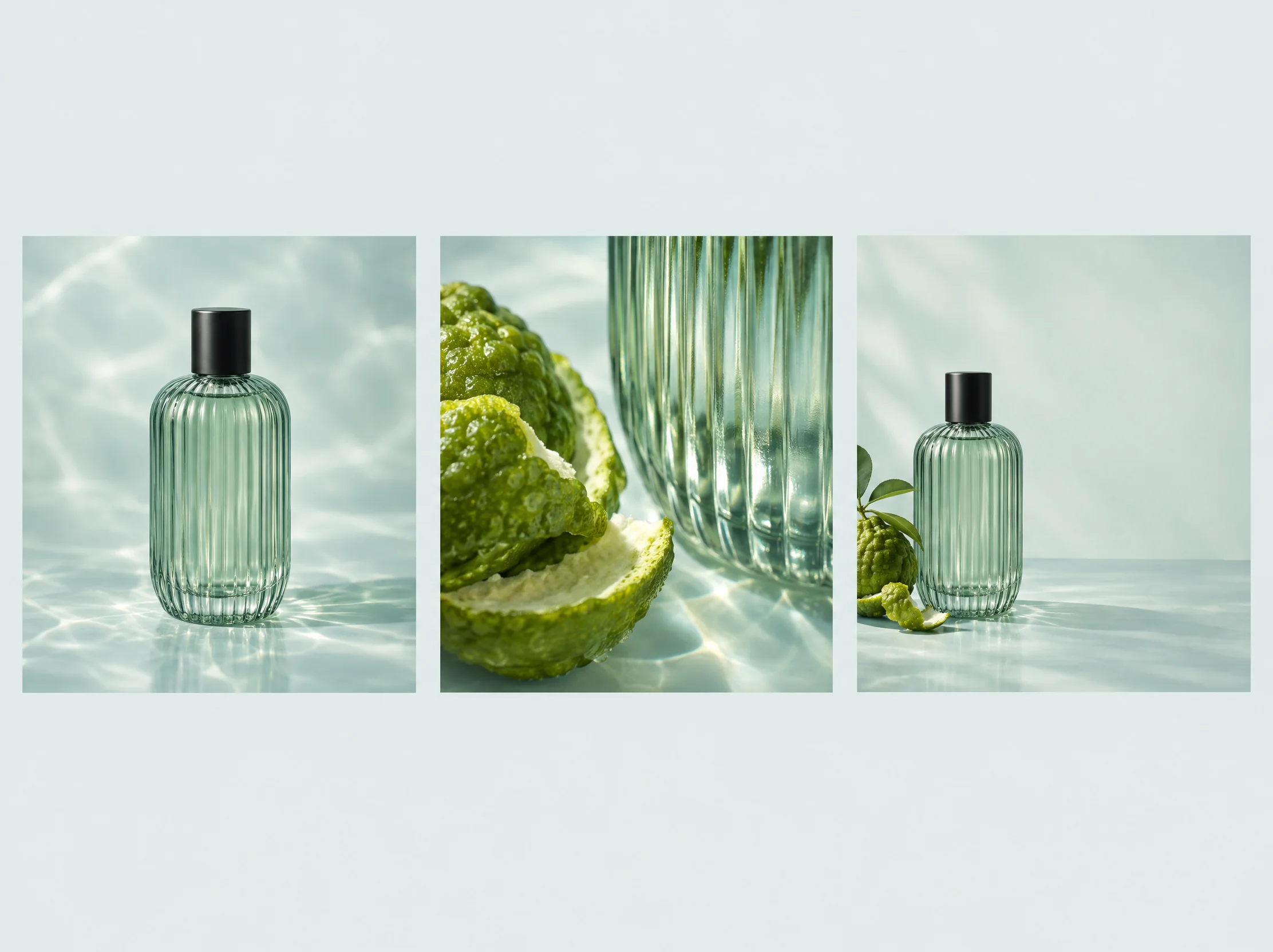
Plan a swipe-through campaign around what people should notice on each card. Open with the fragrance bottle, show an ingredient or texture on the next card, and leave room for a campaign line on the last. Ask Series Mode to keep the bottle and background palette recognizable across the set.
Interior Design Concepts
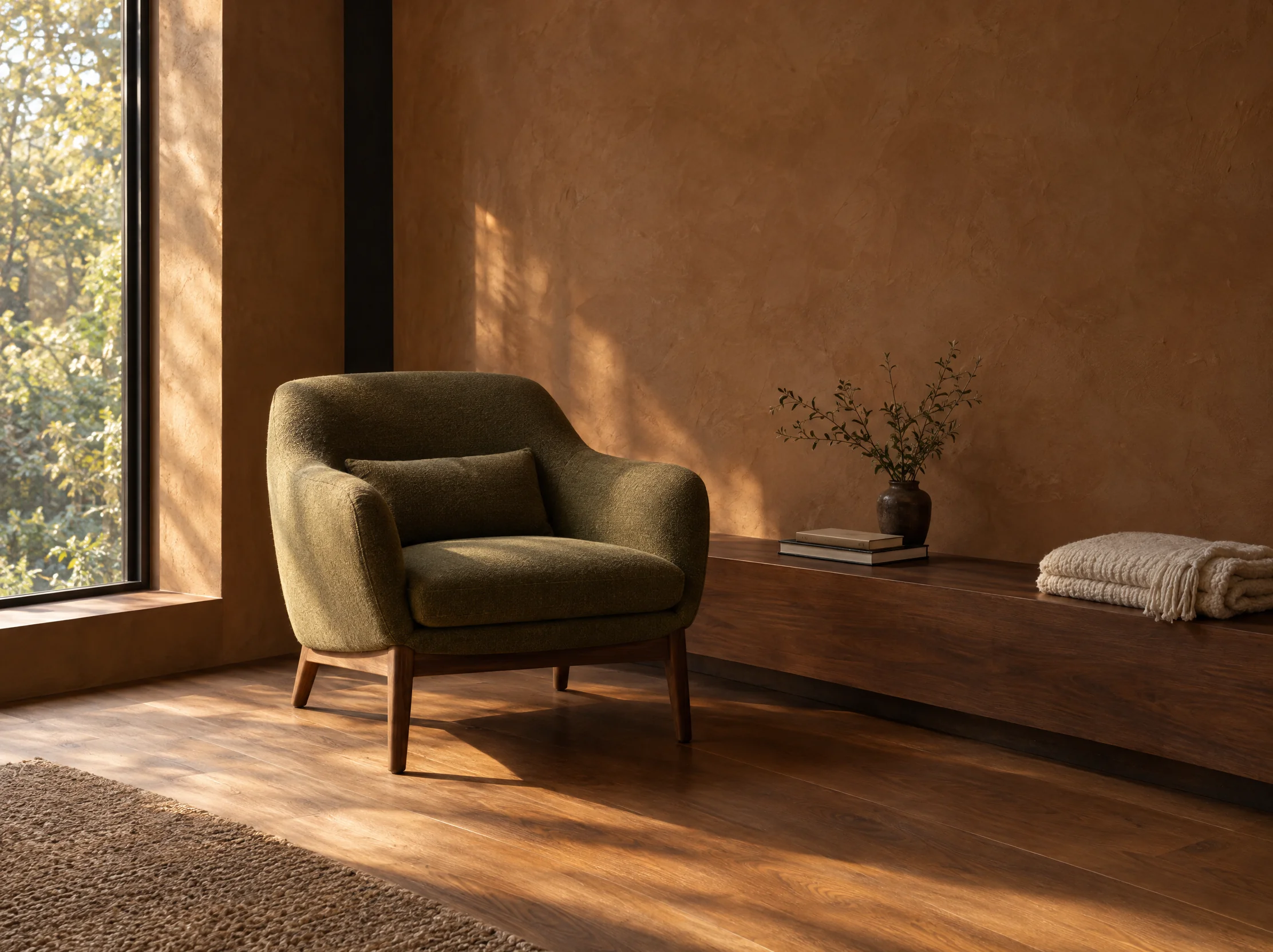
Use a room photo to suggest the space and a material swatch to guide the palette. Describe a new concept for one area, such as a reading corner in earth-toned plaster and walnut. The resulting still gives you a visual direction to discuss before choosing actual finishes or furniture.
Kling Image 4.0 Pricing
Choose a one-time credit pack with credits that never expire.
Find answers about the model, image settings, using references, and buying credits.
Is Kling Image 4.0 the video model?
Kling Image 4.0 creates still images. Kling 4.0 Video creates clips. A still can serve as a storyboard frame or a starting asset for a separate video workflow. Klingimage.app is an independent image creation site.
When should I use 2K, 4K, or 8K?
Start with 2K when you are exploring a composition. Move to 4K or 8K when the final still needs a tighter crop, a larger layout, or a closer view of material and texture. Choose from the resolutions available for the image you are making.
Should I choose Auto or a fixed aspect ratio?
Use Auto when the subject or reference image should guide the framing. Choose a fixed ratio when the image has a destination with a known shape. For example, 1:1 fits a square tile, 9:16 fits a full-height mobile layout, and 16:9 gives a wide scene space on both sides.
How long can my image prompt be?
Kling Image 4.0 accepts up to 15,000 input tokens. That limit covers your instructions. The separate limit for rendered text applies to the words that appear inside the image. Put the exact wording you want to see in quotation marks so it is easy to distinguish from directions about layout or lighting.
Will a reference keep my product exactly the same?
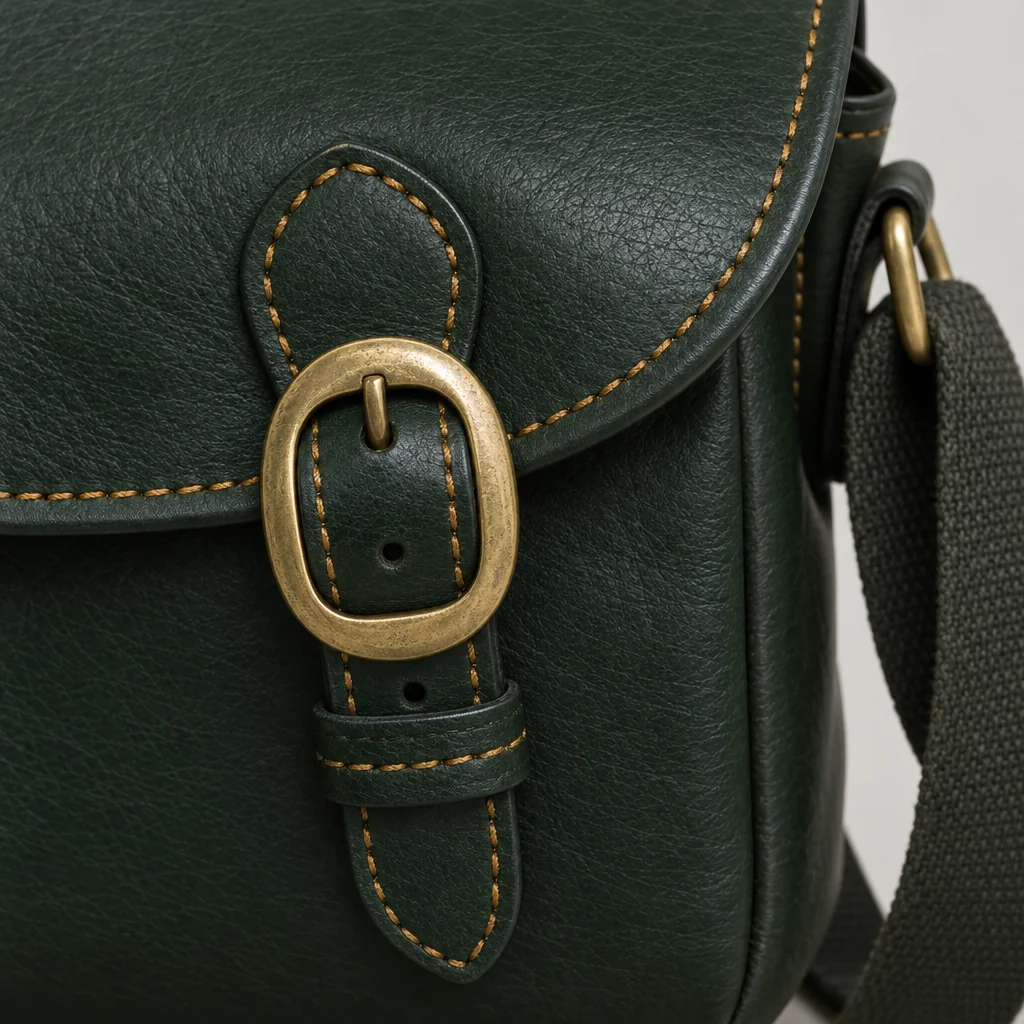
A reference guides the new image. Small details such as lettering, fasteners, and reflections can change. If one of those details matters, include a clear view of it and describe what to preserve. Use the original product photo for any detail that has to match exactly.
How do I buy credits for Kling Image 4.0?
Compare the one-time credit packs on the pricing page. Each pack lists its price and credit balance, and the credits do not expire. The balance tells you how many credits the pack adds. Check the cost for your current settings before you generate.
Create Your Next Still with Kling Image 4.0
Start with the subject you want to see and the setting it belongs in.